Frequently Asked Questions
Installing, licensing and buying
Can I try before I buy?
If I buy iStudio Publisher, what do I get?
Do you offer license multi-packs?
Do you offer discounts?
How do I install my licensed copy of iStudio Publisher?
Can I transfer my iStudio Publisher license to a different Mac?
Why must I log in as an administrator to be able to register?
Are iStudio Publisher updates free of charge?
What operating system(s) does iStudio Publisher support?
Do you offer network based licensing solutions?
About iStudio documents
What is the maximum number of pages in an iStudio Publisher document?
Can I set a custom page size?
Does iStudio Publisher support spread editing across facing pages?
Are iStudio Publisher .ispx files based on a proprietary format?
Can I use Small Caps, Old Style Figures and other alternative font characters?
Can I use OpenType fonts?
How do I insert an image (or PDF, EPS or AI) inside a shape?
Can I insert a multi-page PDF file into an iStudio Publisher document?
Workflow
Can others read my iStudio documents if they don't have iStudio Publisher?
Can others collaborate on my iStudio documents if they don't have iStudio Publisher?
Can I export iStudio Publisher documents to other file formats?
Can I import files from other DTP or word processor applications?
Can I reuse content from documents produced by other DTP or word processor applications?
Can I produce PDF files ready for printing at a commercial print shop?
Can I design and print booklets?
Training resources and Help information
Is there a user manual?
Are there any tutorials?
Does the iStudio Publisher include Help information?
Problems
What should I do if my Mac's hard drive crashes?
Why don't the Help pages display with Mac OS X 10.4.11?
Why can't I save or print?
Why does iStudio Publisher stop working if I migrate my applications to a different Mac?
User support
Can I contact support with a problem or question?
Can I request missing features?
Can I report bugs?
Installing, licensing and buying
Can I try before I buy?
Yes, everyone can download iStudio Publisher and try it FREE for 30 days (full functionality trial). The installation software is available from our downloads page. There's a short video tutorial showing how to download and install iStudio Publisher.
If I buy iStudio Publisher, what do I get?
You will receive an email containing your License Activation Code(s) and purchase receipt. There will be a separate License Activation Code for each license you buy. Each License Activation Code can be used to license iStudio Publisher on one Mac.
Do you offer license multi-packs?
Yes, we offer a Personal 2-Pack License, Family 3-Pack License and Single Computer License 5-Pack - click here for more information.
Do you offer discounts?
Yes, we offer Educational Discount, Existing Customer Discount and occasional Special Offers - click here for more information.
How do I install my licensed copy of iStudio Publisher?
A licensed copy of iStudio Publisher is based on the same software as a trial copy. To get licensed, simply enter a License Activation Code when the application asks for it. Each License Activation Code is 20 characters long. (TIP: It is easiest to copy and paste a License Activation Code directly from your purchase receipt email.)
You can either license an existing trial copy of iStudio Publisher or a new installation. The installation software is available from our downloads page.
Can I transfer my iStudio Publisher license to a different Mac?
Yes, you can transfer a license by completing the following two steps:
1. Deactivate the license on your old Mac (by choosing menu option Help > Licensing > Unlicense). You will be reminded of your License Activation Code and so won't need to find your original purchase receipt email.
2. License your new Mac.
Why must I log in as an administrator to be able to register?
If you are logged into your Mac as a Standard Account holder (as opposed to an Administrator Account holder), you will be asked to log in as an Admin when you register. This is required because iStudio Publisher installs your license file (either a 30-day trial or a full purchased license) into a folder that requires Admin write permission, which is for two reasons:
1. To make the license available to all users on your Mac (it would be insufficient to store the license file in your Standard Account folder, which would render it inaccessible to other Standard Account holders).
2. To prevent other Standard or Guest Account users from being able to delete the license (for malicious purposes).
You can display a list of all account names on your Mac by opening the System Preferences window and clicking Accounts. It says either Admin or Standard below each name, enabling you to find an Admin account name to use.
NOTE: The Administrator Login Dialog is a standard Mac OS X dialog that's displayed in response to iStudio Publisher requesting write permission to folder space that has Admin ownership. Mac OS X only returns control to iStudio Publisher when this dialog is dismissed. Importantly, iStudio Publisher doesn't get involved with processing this dialog and never sees your password. iStudio Publisher simply gets notified of whether the license file installation can proceed (or not), which depends on whether the Admin login was completed successfully.
Are iStudio Publisher updates free of charge?
Yes, our Upgrade Policy is to provide all (1.x) minor releases and all (1.x.y) maintenance releases FREE of charge. Please see our development roadmap for more information.
New major releases of iStudio Publisher (Version 2, Version 3, etc.) will be made available to existing customers at a reduced 'upgrade' price compared to the full purchase price.
What operating system(s) does iStudio Publisher support?
iStudio Publisher runs on all Macs that have Mac OS X 10.4 Tiger or later.
If you have Mac OS X 10.6 Snow Leopard installed you will need to have iStudio Publisher Version 1.1.1 (or later) installed. Please choose Help > Check for Updates to confirm this.
NOTE: You will automatically be offered new update versions of iStudio Publisher as we release them. We recommend that you install all new iStudio Publisher updates offered to you.
Do you offer network based licensing solutions?
Yes, these are designed for use by multi-user work groups on networked Macs. Please contact sales to discuss your network based licensing requirements.
What is the maximum number of pages in an iStudio Publisher document?
This was increased to 9999 pages in Version 1.1.2.
Can I set a custom page size?
Yes, custom page sizes can be set up from the Page Setup dialog, which is available from the New Document dialog or from iStudio Publisher's File menu.
Does iStudio Publisher support spread editing across facing pages?
Yes, you can create a document in spread editing mode - simply select the Spread Editing checkbox on the New Document dialog. Spread editing enables you to view and lay out document content across facing pages, which is commonly used for creating magazines and brochures.
NOTE: You need to create your document in spread editing mode as you can't switch into it later.
Are iStudio Publisher .ispx files based on a proprietary format?
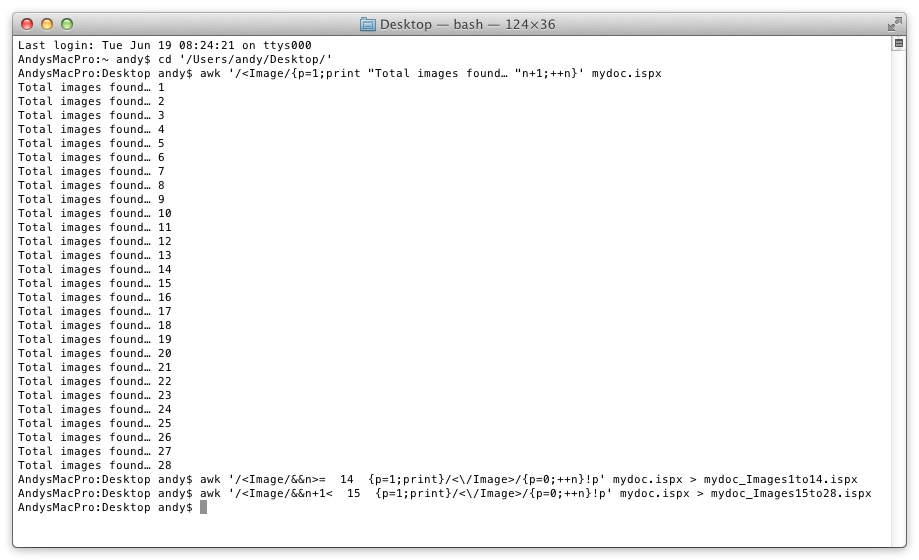
iStudio Publisher files are XML based, which is non-proprietary. We have published a file format schema that can be used by anyone who wants to get involved.
Can I use Small Caps, Old Style Figures and other alternative font characters?
Yes, but you will need to use a TrueType font that has the Small Caps and Old Style Figures housed in a separate font file. These fonts work with the current version of iStudio Publisher because the Small Caps and Old Style Figures characters are mapped to the same Unicode points as the other forms of the font (regular, bold, italic, etc.).
Can I use OpenType fonts?
At present, iStudio Publisher only provides basic Roman support for OpenType fonts. In the future, we will add more support for OpenType fonts, as follows:
• Extended language support, including, for example, support for "complex" writing scripts such as Arabic and the Indic languages.
• Advanced typographic support for Latin script languages such as English (to provide access to Small Caps, Old Style Figures and other alternative font characters via a simple button click or key combination).
In the meantime, you can choose Edit > Special Characters to select and insert Small Caps, Old Style Figures and other alternative font characters in OpenType fonts. NOTE: This approach is slow and only realistic for small quantities of text. It can be speeded up a little by using Edit > Special Characters to create an iStudio Publisher file containing a reusable palette of alternative characters to copy and paste into your other iStudio Publisher documents.
How do I insert an image (or PDF, EPS or AI) inside a shape?
The quickest way is to drag and drop images directly from your Desktop, Finder window, or from other applications that support drag and drop. Hover your mouse over an existing shape and a visual indication will confirm that the shape is about to receive a dropped image.
Alternatively, you can use the copy and paste commands, Insert menu, or Image Inspector to add an image to one or more existing shapes - simply select the shapes with the Pointer Tool BEFORE pasting/inserting the image.
NOTE: You can drop images onto any blank page or canvas area, or paste/insert images with NO shape selected. In all of these cases, a default shape (rectangle) is created to hold each image.
Can I insert a multi-page PDF file into an iStudio Publisher document?
Yes, although with the present version of iStudio Publisher you can only do it one page at a time. Start by opening the PDF file in Preview, so that page thumbnails are showing in Preview's sidebar (if they aren't already, choose View > Sidebar, and then choose Thumbnails from the drop-down control at the bottom of the sidebar). In the Thumbnails Sidebar, navigate to a page you want to copy, click on it and then simply drag and drop it into iStudio Publisher. Repeat for other pages.
NOTE: If you try to insert a multi-page PDF file into an iStudio Publisher document by choosing menu option Insert > PDF, only the first page of the PDF gets inserted (at present no options are provided for you to choose other single pages or page ranges).
Can others read my iStudio documents if they don't have iStudio Publisher?
Yes, you can either print iStudio documents to paper copy or export to PDF format for sharing. PDF files can be read by all Macs and Windows machines. NOTE: Windows users may need to install PDF reader software (for example, Adobe Reader or PDF-XChange Viewer), which are both FREE to download and use.
Can others collaborate on my iStudio documents if they don't have iStudio Publisher?
Yes, you can export and send them your iStudio documents as PDF files. Ask them to annotate and mark up the PDF files. Finally, you can review their changes in the PDF files and make the corresponding edits to your original iStudio documents.
For Mac users, ask them to open the PDF in Preview.app, which includes annotation and mark up tools.
For Windows users, Adobe Reader is the most common PDF reader. It contains annotation and mark up tools, but these are only available if the PDF has been enabled for commenting using Adobe Acrobat (for example, open the PDF file in Acrobat 9, choose Comments > Enable for Commenting and Analysis in Adobe Reader, and save the PDF before sending it out). If you happen to own a copy of Adobe Acrobat this will be the most convenient solution for the majority of Windows users because they are likely to have Adobe Reader already installed.
If you don't have Adobe Acrobat, there's another solution for Windows users that's both excellent and FREE! - ask them to download and install PDF-XChange Viewer - it's a PDF reader that includes comprehensive annotation and markup facilities.
Can I export iStudio Publisher documents to other file formats?
The current version of iStudio Publisher supports exporting documents to PDF file, and text flows to EPUB file (ebook format) and RTF file (styled text).
We plan to add a range of new image export options to Version 1.2, including: whole page export, export area and export shape; to different image formats, including: png, gif, jpeg, tiff.
Can I import files from other DTP or word processor applications?
No, iStudio Publisher does not include import filters for proprietary format files produced by other desktop publishing (DTP) or word processor applications such as Microsoft Publisher, Quark Xpress, Adobe InDesign, Apple Pages or Microsoft Word. These file formats are sometimes protected by patents and are not documented publicly. Although we may revisit this, our current development efforts are focussed on adding other features instead.
NOTE: You can exchange styled text (in Rich Text Format) with other applications using the copy and paste or drag and drop mechanisms.
Can I reuse content from documents produced by other DTP or word processor applications?
Yes, iStudio Publisher enables you to reuse text and images gathered from other applications using the copy and paste or drag and drop mechanisms.
If you can't open a source document on your Mac because you don't have the corresponding application software installed, you can still reuse its content in your iStudio documents by arranging to receive a PDF export of the original file, and extracting its text and images using an extraction utility. File Juicer is a good example of a text and image extraction utility.
Can I produce PDF files ready for printing at a commercial print shop?
Yes, you can satisfy all of the typical requirements of a commercial print shop, including high resolution images, CMYK colors and embedded fonts. It's worth checking with your print shop what they require.
At present, iStudio Publisher creates PDF files using Mac OS X's inbuilt services. It provides no specific options or settings for PDF processing, but you can optionally add your own PDF processing using Mac OS X's Quartz filters. We are considering adding support for PDF settings in the future. That's not to say iStudio Publisher creates poor quality PDFs! In fact, we've made several design choices within our PDF creation process to produce PDFs suitable for high quality printing.
Digital images are embedded in iStudio Publisher document (.ispx) files in their original formats. Exporting as a PDF also embeds the original format images in the PDF file at their original resolution and compression level, ensuring there's no loss of image quality. You do need to start off with images of adequate resolution and quality.
iStudio Publisher can be used as part of a colour-managed workflow. Document images and other coloured document artifacts (lines, fills, text, etc) are all tagged with ICC colour profiles, which are stored in iStudio Publisher document files and transferred to exported PDFs. ICC colour profiles can be changed during document editing. Some printers may require colors to be set to CMYK. For more information about setting CMYK colours, please see the iStudio Publisher Help page "CMYK colors".
iStudio Publisher creates PDF files with font subsets embedded, which ensures all font information remains available for viewing on other computers even if they don't have your document's fonts installed. Embedding font subsets involves only including the individual font glyphs (characters) that are actually used in your document rather than embedding complete fonts; it helps to minimize the PDF file size. iStudio Publisher controls and sets the position of each and every character in the PDF rather than relying on the use of default PDF layout algorithms, so you can also be sure your page layout will be faithfully reproduced.
Can I design and print booklets?
Yes, you can create a multi-page booklet from several sheets of paper printed on both sides and folded in half. You can design an iStudio Publisher document for booklet printing as reader's spreads, i.e. with the pages arranged in the same running order as they will appear to the reader in the finished printed booklet. This requires the use of page imposition software, which rearranges the page order for booklet printing, referred to as printer's spreads.
iStudio Publisher's booklet design supports:
• selection of custom page/paper size
• spreading text and images across facing pages
iStudio Publisher's booklet printing uses Christoph Vogelbusch's FREE Create Booklet PDF Service (Many Thanks Christoph!), which you will need to download and install before you can print booklets. Click here to download the Create Booklet PDF Service and follow the installation instructions included with the installation dmg.
Click here to download booklet printing instructions. These are presented in an iStudio Publisher document that has also been designed for printing out as an example booklet (A5 and Half US Letter page size versions included).
Training resources and Help information
Is there a user manual?
Yes, you can click here to download the Introduction to iStudio Publisher (PDF), which is also included in the installation disk image file. This user manual was produced using iStudio Publisher and you can also click here to download the Introduction to iStudio Publisher (.ispx file) to see how we created it and/or add your own notes.
Are there any tutorials?
Yes, video tutorials and step-by-step tutorials are available on the tutorials page.
Does the iStudio Publisher include Help information?
Yes, iStudio Publisher includes comprehensive Help pages and context relevant Help, which you can access by clicking on the '?' buttons that appear on many of the windows and dialogs.
We recommend that every new user reads the Rapid Start Guide, which you can open from the Help menu. Further to this, a "getting started" pathway is signposted through some of the other Help pages, which is particularly designed to help users who are new to desktop publishing (DTP).
What should I do if my Mac's hard drive crashes?
Start by reinstalling iStudio Publisher, which is available from our downloads page. Choose menu option Help > Licensing > Licensing Special > Relicense to reinstall an existing license. You can Relicense without having to refer back to your original purchase receipt email to find your License Activation Code.
Why don't the Help pages display with Mac OS X 10.4.11?
This is caused by a Mac OS X 10.4.11 bug, which you can fix as follows:
1. Find the cache folder "com.apple.helpui" located in your user account Library Caches folder (~/Library/Caches/com.apple.helpui) and drag it to Trash. NOTE: There is no danger in deleting a cache folder, the system will automatically recreate it as required.
2. Relaunch iStudio Publisher and the problem should have gone.
IMPORTANT: If the above two steps don't fix the problem, please continue as follows:
3. Drag all copies of iStudio Publisher to Trash, Empty the Trash, reboot your Mac, and download and install the application again.
Why can't I save or print?
This is because iStudio Publisher is running in unlicensed mode.
Choose menu option Help > Licensing > Check License to confirm your license status.
If unlicensed, you will need to register for a license - start by choosing menu option Help > Licensing > License.
If you have just registered iStudio Publisher, but the application is still running in unlicensed mode, there has been a problem with your registration, and you will need to repeat it.
IMPORTANT: If you are logged into your Mac as a Standard Account holder (as opposed to an Administrator Account holder) you will need to log in as an Admin when you register - click here for more information.
Why does iStudio Publisher stop working if I migrate my applications to a different Mac?
Each iStudio Publisher license will only work on the particular Mac on which it was originally installed. If you migrate your applications to a new Mac, you will need to reinstall your license by completing the following two steps:
1. Deactivate the license on your old Mac (by choosing menu option Help > Licensing > Unlicense). You will be reminded of your License Activation Code and so won't need to find your original purchase receipt email.
2. License your new Mac.
Can I contact support with a problem or question?
Yes, but please check through our other Frequently Asked Questions first.
You can contact support via the contact form on our website.
Can I request missing features?
Yes, but please check our development roadmap first to see if your missing feature is already planned. We welcome receiving all of your requests, comments and ideas, which help to steer our product development program.
Our Upgrade Policy is to provide all (1.x) minor releases and all (1.x.y) maintenance releases FREE of charge.
You can request features via the contact form on our website.
Can I report bugs?
Yes, and we really do appreciate you taking the time to send us this information, which helps us to improve the quality of our software.
You can report bugs via the contact form on our website.